OBS multiple streams: practical guide to multistreaming to YouTube, Twitch, and Facebook
Multistreaming from OBS means sending one live production from OBS Studio to more than one platform at the same time, such as YouTube, Twitch, and Facebook. The hard part is not whether it can be done. The hard part is choosing a method that does not overload your upload, create unnecessary CPU pressure, or turn a simple show into a fragile chain of local outputs.
That tradeoff matters for solo creators, event operators, and technical teams alike. The simplest local setup can become the least stable when upload headroom is thin. The most controlled workflow can be overkill for a short casual stream. This guide focuses on the practical decision: which multistreaming path makes sense for your workflow, and how to run it without guessing.
Quick answer: can OBS stream to multiple platforms?
Yes. OBS can be used to stream to multiple platforms, but for most teams it is not a simple stock one-click feature inside the default workflow. In practice, there are three ways to do it:
- A plugin route inside OBS, where the same machine pushes multiple outputs directly.
- A cloud multistream or relay route, where OBS sends one stream upstream and a service fans it out.
- A one-ingest fan-out workflow, where OBS sends to one upstream server or ingest layer that then distributes to Twitch, YouTube, Facebook, and other destinations.
Each path is good enough in the right situation. A plugin can work for low-risk tests and lightweight creator setups with strong upload headroom. A cloud relay is usually the fastest stable option when you want one stream out of OBS and several platforms downstream. A one-ingest fan-out design is typically the strongest operational choice when reliability, restart control, and destination isolation matter.
That distinction matters because stock OBS is not really a native multistream control plane by itself. For most teams, the decision is not just "can OBS do it?" but "where should the duplication happen: inside OBS, in a relay service, or in a controlled ingest layer?"
The three practical ways to multistream from OBS
Plugin route inside OBS
An OBS multiple streams plugin lets OBS Studio handle several outputs from the same workstation. This is attractive because it keeps everything local and gives you direct control over where the stream goes.
It works best when:
- You have a strong, stable upload with real headroom.
- You only need a small number of destinations.
- You are comfortable managing stream keys and failures on the production machine.
- The stream is not operationally critical.
The tradeoff is that every additional local output adds network pressure and another failure point on the same box running your scenes, media, graphics, and capture chain.
In practice, this usually means Multi-RTMP or Aitum-style plugin workflows are best treated as creator-grade or test-friendly paths, not as the safest default for important live sessions. They solve the "can OBS send to several places?" question, but they do not remove the local upload and encoder pressure that causes many multistream failures.
Cloud multistream or relay service route
In this model, OBS sends one stream to a cloud service, and the cloud service relays it to your platforms. This is usually the cleanest answer for people searching how to stream to multiple platforms from OBS without sending separate streams from one PC.
It works best when:
- Your local upload is limited or inconsistent.
- You want fast setup without building your own distribution layer.
- You need easier recovery when one platform has a problem.
- You want OBS focused on producing one stable feed, not several.
The tradeoff is that you introduce an external service into the chain, so you need to choose a workflow that exposes clear status, per-destination control, and sensible reconnect behavior.
OBS to one upstream server or ingest, then fan out to destinations
This is the operational version of multistreaming. OBS publishes a single upstream feed to one ingest point, and that upstream layer fans out to multiple platforms. That ingest can be a managed service or your own server design, and the upstream can use protocols such as SRT or RTMP depending on the environment.
It works best when:
- You want one clean output path from OBS.
- You need more control over restart behavior and destination isolation.
- You are running branded events, panels, webinars, or longer sessions.
- You care about monitoring, routing, and predictable recovery.
The tradeoff is setup complexity. You have to configure the ingest layer correctly, but once that is done, the workflow is usually safer than pushing many local outputs from the production machine.
Plugin vs cloud relay vs one-ingest fan-out
Reliability
Local plugin-based multistreaming is the least forgiving when your upload fluctuates or one destination behaves badly. A cloud relay or one-ingest fan-out workflow is generally more reliable because OBS only has to maintain one upstream connection, while downstream delivery can be managed separately.
Upload usage
If OBS pushes directly to three platforms, your internet connection carries three separate outbound streams. If OBS sends one upstream to a relay or ingest layer, your local upload only carries one stream and the cloud handles the rest.
CPU and PC pressure
Even when an OBS multiple streams plugin avoids full duplicate encoding, multiple outputs still add local networking, buffering, muxing, retries, and more things that can stall on the same machine. If you run separate encoding profiles per destination, the local cost increases further. One stable output from OBS is usually lighter and safer.
Setup difficulty
The plugin route is usually the fastest to test. Cloud relay is usually the fastest stable production option. One-ingest fan-out takes more design discipline, but it gives better structure for serious workflows.
Recovery when one destination fails
With direct local outputs, a platform failure can force you back into OBS to troubleshoot on the live production machine. With relay or fan-out workflows, you can often restart or repair only the failing destination while leaving the upstream program feed untouched.
Why one stream out of OBS is usually safer than many local outputs
OBS is already responsible for rendering scenes, decoding media, compositing graphics, capturing devices, and encoding the program. Adding multiple live outbound paths increases the chance that network instability, platform-side errors, or local output congestion will affect the whole show. A single well-tuned upstream feed keeps OBS doing one main job well.
Bandwidth and CPU math people underestimate
The most common planning mistake is assuming that one 6 Mbps stream to three platforms is still just a 6 Mbps uplink. It is not. If OBS pushes those outputs directly, you are closer to 18 Mbps of video upload before audio and protocol overhead. In real conditions, that can mean roughly 19 to 20+ Mbps of sustained outbound capacity with enough headroom to absorb jitter.
That matters because upload is usually the weakest side of the connection. You can have excellent download and still fail at multistreaming if the uplink is unstable, shared, or briefly saturated by backups, sync tools, VPN overhead, or office traffic.
CPU math gets underestimated too. The encoder itself may be the biggest load if you create separate encode paths, but even shared or duplicated outputs still increase local pressure. More sockets, more output queues, more retries, and more buffering all live on the same production machine. If your system is already close to its limits, extra outputs can be the difference between a stable show and dropped frames.
That is why cloud fan-out is often safer. You use your local upload for one controlled upstream feed, then let a separate layer handle the duplicate delivery work.
Best method by workflow type
Solo creator or low-budget setup
If budget is tight and streams are short, a plugin route can be good enough if your upload is strong and your machine has room to spare. Keep expectations realistic. Test before going live, keep bitrate conservative, and do not assume a gaming PC plus fast download equals a stable multistream box.
Branded events
For sponsor-sensitive or client-visible events, one-input fan-out is usually the better choice. It reduces local risk and gives operators cleaner recovery if one platform fails or needs a key refresh mid-event.
Webinars and panels
Webinars often need consistent delivery more than maximum visual quality. A relay or fan-out workflow is usually the safer fit because you can tune one stable outbound profile from OBS and keep platform-specific issues downstream.
Longer live sessions
The longer the stream, the more likely a platform hiccup, token issue, or network wobble becomes. Longer sessions benefit from sending one upstream from OBS and letting a more controlled layer manage fan-out and restarts.
Teams that need stronger control and restart behavior
If operators need to restart YouTube without touching Twitch, replace a Facebook key during a live window, or isolate a failing destination while the main feed keeps running, a one-ingest fan-out workflow is the right design.
How to multistream from OBS through one-input fan-out with Callaba
This workflow keeps OBS focused on producing one stable feed while Callaba handles distribution to multiple destinations. The idea is simple: OBS sends one stream upstream, Callaba receives it, and then Callaba fans it out to Twitch, YouTube, Facebook, and any other configured outputs.
1. Start with one conservative OBS output profile
Before creating destinations, set OBS for a profile that all three platforms can handle cleanly.
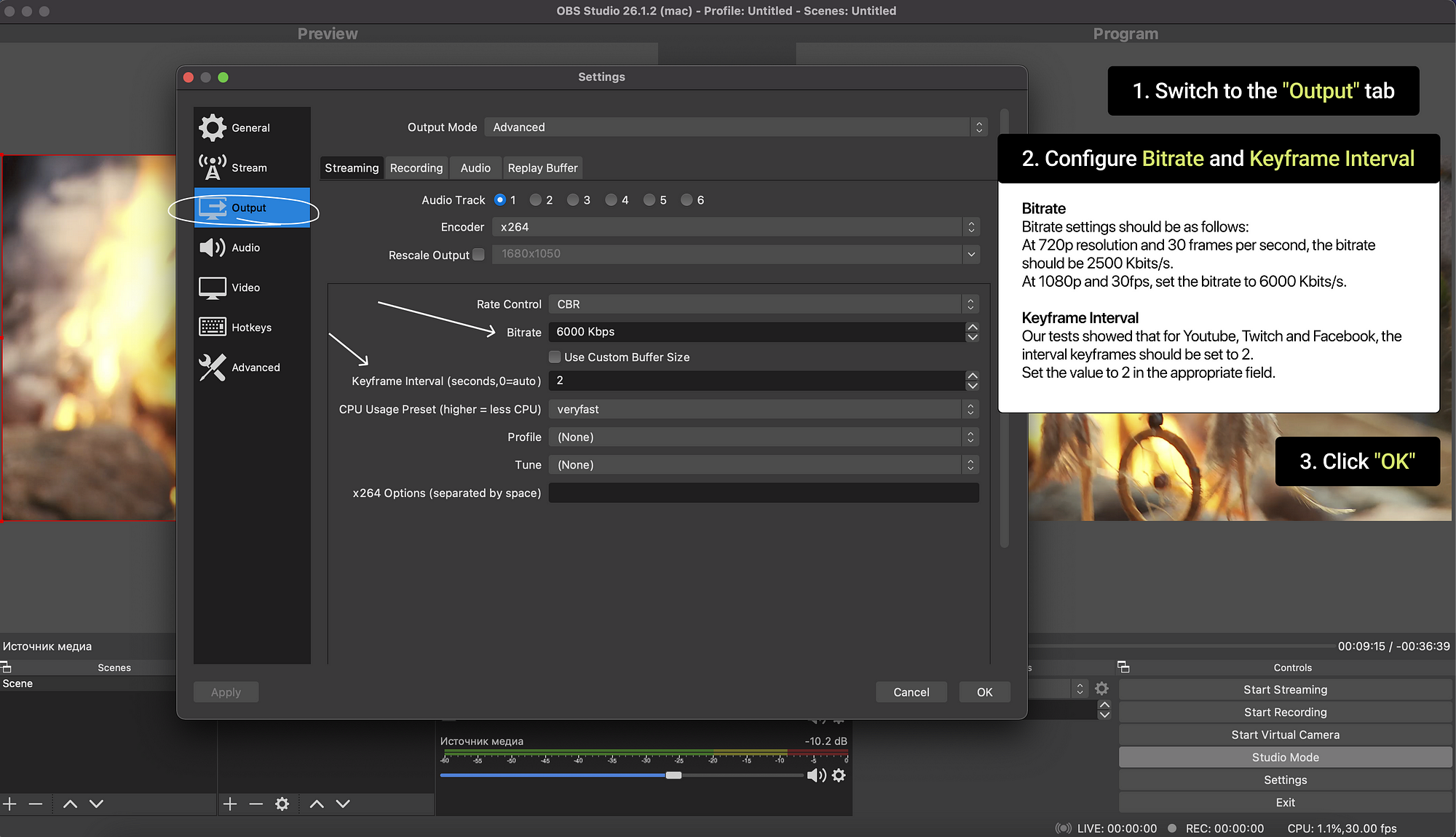
- Use CBR.
- Set keyframe interval to 2 seconds.
- Use AAC audio at 48 kHz, typically 128 to 160 kbps.
- For a safe shared profile, start around 4500 to 6000 kbps video for 1080p30 or 720p60.
- If Twitch is one of the destinations, avoid aggressive bitrate choices that only YouTube would tolerate comfortably.
If your uplink is inconsistent, lower the bitrate first rather than pushing the encoder harder.
2. Create an SRT server in Callaba
- Open your Callaba account and create a new SRT server or SRT ingest endpoint.
- Give it a clear name so operators can identify it quickly during a live show.
- Copy the connection details provided for publishing, such as host, port, and any stream ID or passphrase required by the endpoint.
- Confirm whether the endpoint expects caller or listener behavior and use the publish settings Callaba provides for OBS.
The goal at this stage is not fan-out yet. The goal is simply to create one reliable upstream destination for OBS.
3. Connect OBS as the publisher
- In OBS, configure your streaming output to publish to the SRT endpoint using the connection details from Callaba.
- Double-check host, port, stream ID, and passphrase values before going live.
- Keep the first test simple: one scene, stable audio, no unnecessary browser sources or local recording if you are only validating transport.
- Start the stream from OBS and watch both OBS stats and the upstream status in Callaba.
What to verify now:
- OBS shows stable output with no growing network dropped frames.
- Callaba shows an active incoming publisher and a steady incoming bitrate.
- The incoming feed has expected audio and video.
4. Set practical defaults before adding destinations
Do not add three platforms and only then discover the upstream is unstable. Validate the single upstream feed first. Practical defaults for most cross-platform sessions are:
- Keyframe interval: 2 seconds.
- Video bitrate: 4500 to 6000 kbps to stay broadly compatible.
- Audio bitrate: 128 to 160 kbps AAC.
- Resolution and frame rate: choose a profile you can hold for the full event, not one that looks good for 30 seconds in a test.
If your machine supports a stable hardware encoder, it is usually the better production choice. If not, use a conservative software preset rather than chasing maximum quality.
5. Add Twitch, YouTube, and Facebook as destinations
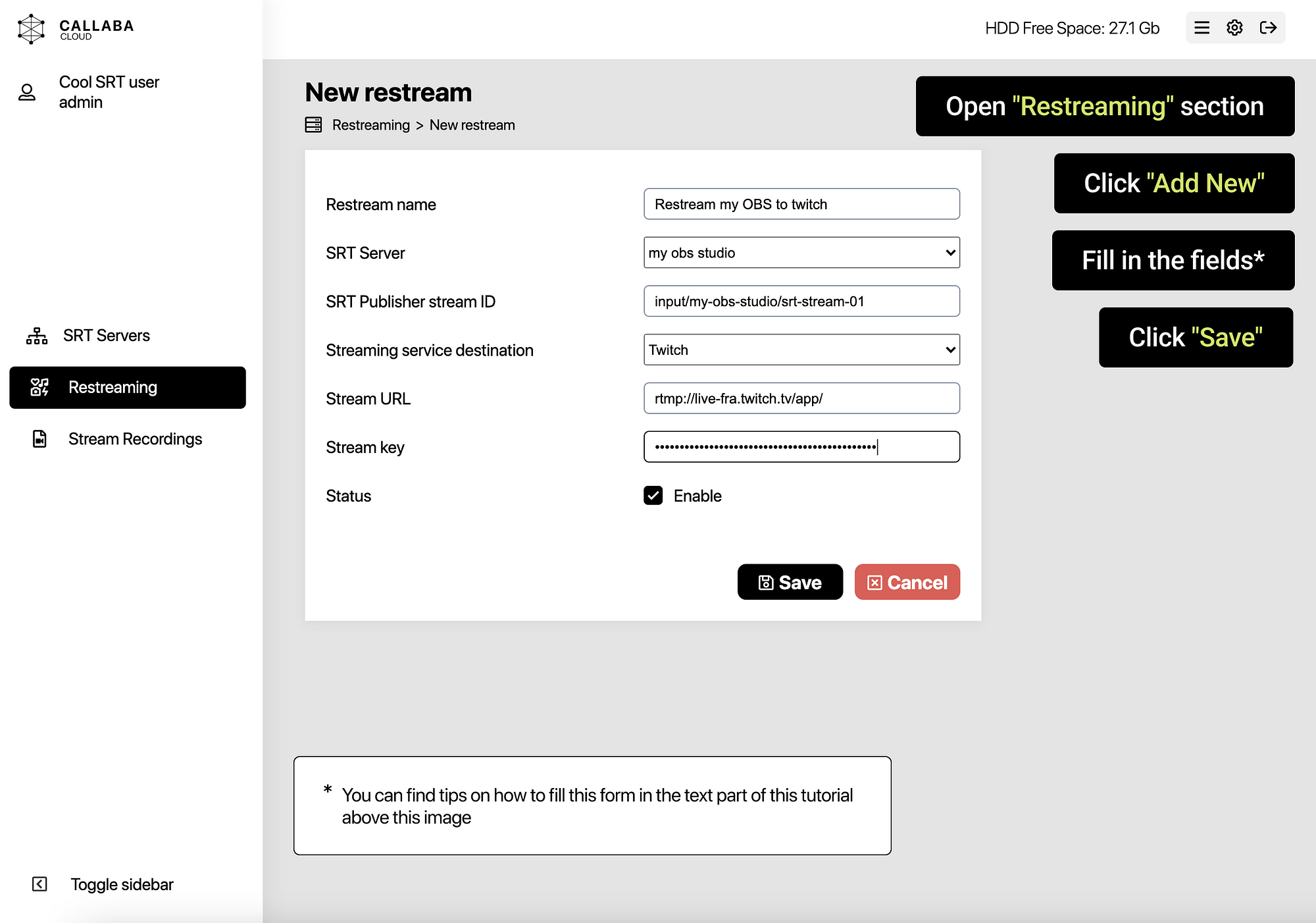
- In Callaba, add a new output destination for Twitch and paste the correct Twitch stream key.
- Add a YouTube destination using the stream URL and stream key for the live event or persistent stream you intend to use.
- Add a Facebook destination using the correct live endpoint and stream key for the page, profile, group, or event you are actually publishing to.
- Name each destination clearly so operators can tell which output belongs to which platform and event.
What to verify now:
- Each destination is configured with the correct platform key and endpoint.
- The destination can be started independently.
- You can see preview or health data on the platform side once the destination is active.
6. Validate platform behavior one destination at a time
Bring up each destination methodically instead of starting everything blindly at once.
- Start Twitch and confirm ingest health, preview, and expected category or channel target.
- Start YouTube and confirm the event is receiving data in Live Control Room.
- Start Facebook and confirm the feed is arriving at the intended page, profile, group, or event destination.
This staged validation makes it much easier to spot a bad key, wrong destination, or platform-side readiness issue before the event actually begins.
7. Understand restart and validation behavior during a live event
The biggest operational advantage of one-input fan-out is selective recovery. If OBS remains connected to Callaba and the incoming stream is healthy, you usually do not need to restart the whole workflow just because one platform has a problem.
- If Twitch fails but YouTube and Facebook are healthy, restart only the Twitch destination after checking the key and ingest target.
- If YouTube remains pending, verify the event and stream key first, then restart only the YouTube destination.
- If Facebook points to the wrong destination type, correct the key or endpoint and restart only that output.
- If the upstream SRT feed itself drops, fix the OBS-to-Callaba connection first; downstream outputs cannot recover cleanly without a healthy source.
The practical rule is simple: if the upstream is healthy, repair the affected destination only. If the upstream is unhealthy, fix the source path first.
Screenshot walkthrough: setting up one-input fan-out in Callaba
If you prefer a visual setup path, this is the shortest practical sequence. The goal is simple: OBS sends one upstream stream, and Callaba handles the fan-out to Twitch, YouTube, Facebook, or other destinations downstream.
- Log in to the Callaba dashboard and open the streaming control panel for your deployment.
- Go to SRT Servers and create a new SRT server for the OBS input.
- Open the server details page and copy the publisher URL.
- In OBS, open Settings -> Stream, choose Custom, and paste the publisher URL into the server field.
- In Output, set a conservative bitrate and use a 2-second keyframe interval before adding any destinations.
- Start the OBS stream and confirm that the upstream feed is healthy before creating restream destinations.
- In Callaba, open Restreaming and add Twitch, YouTube, and Facebook one at a time so you can validate each destination cleanly.
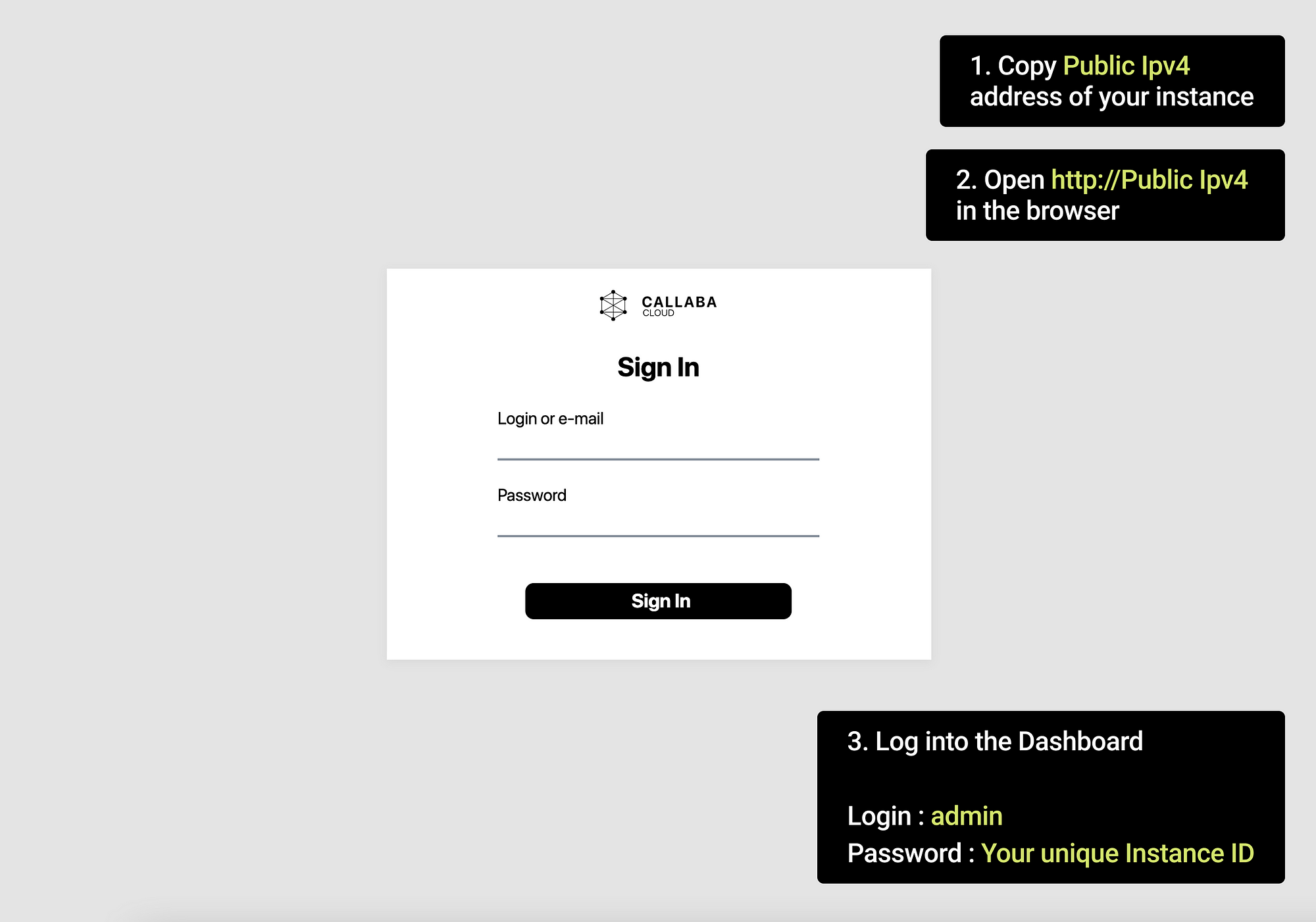
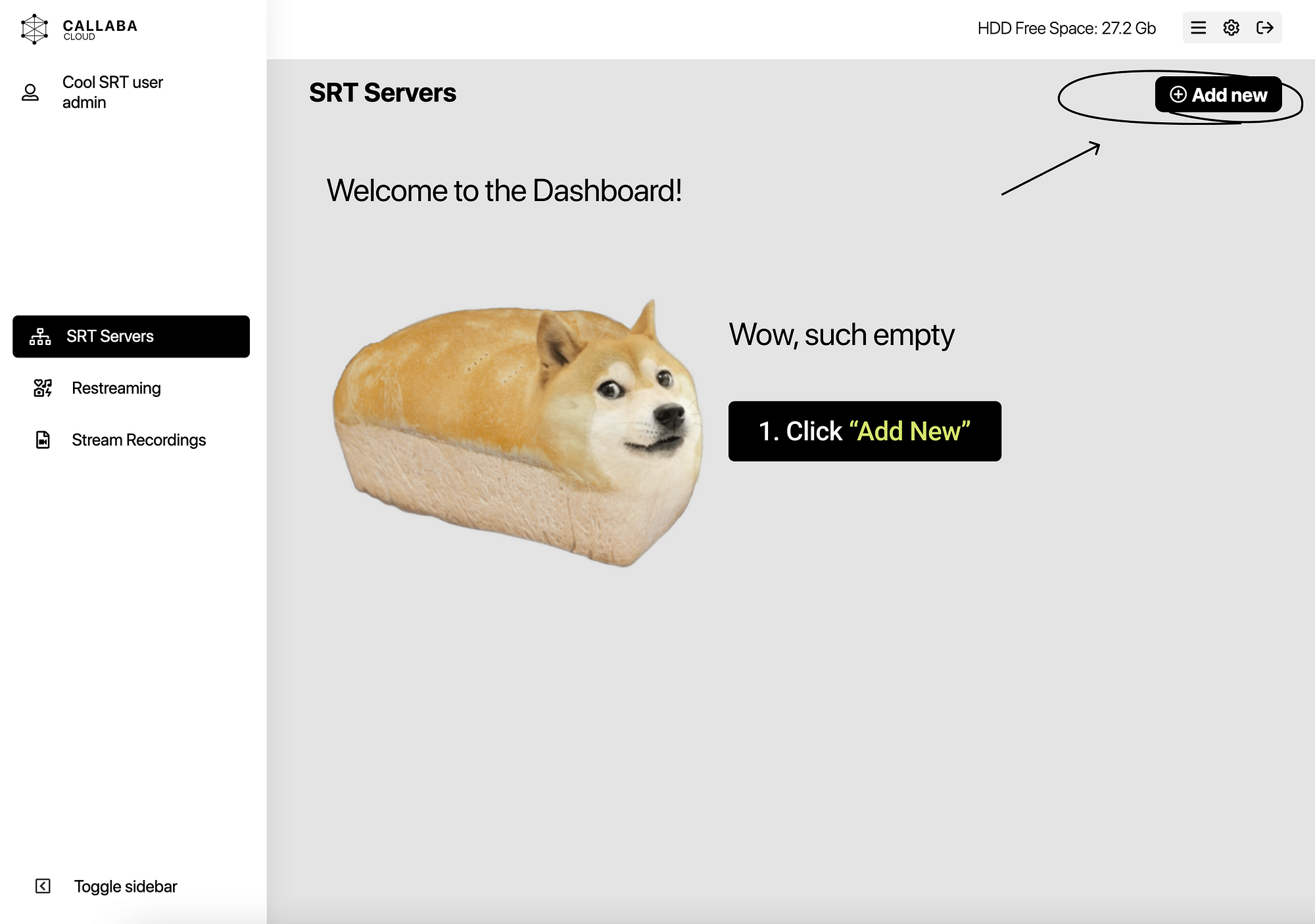
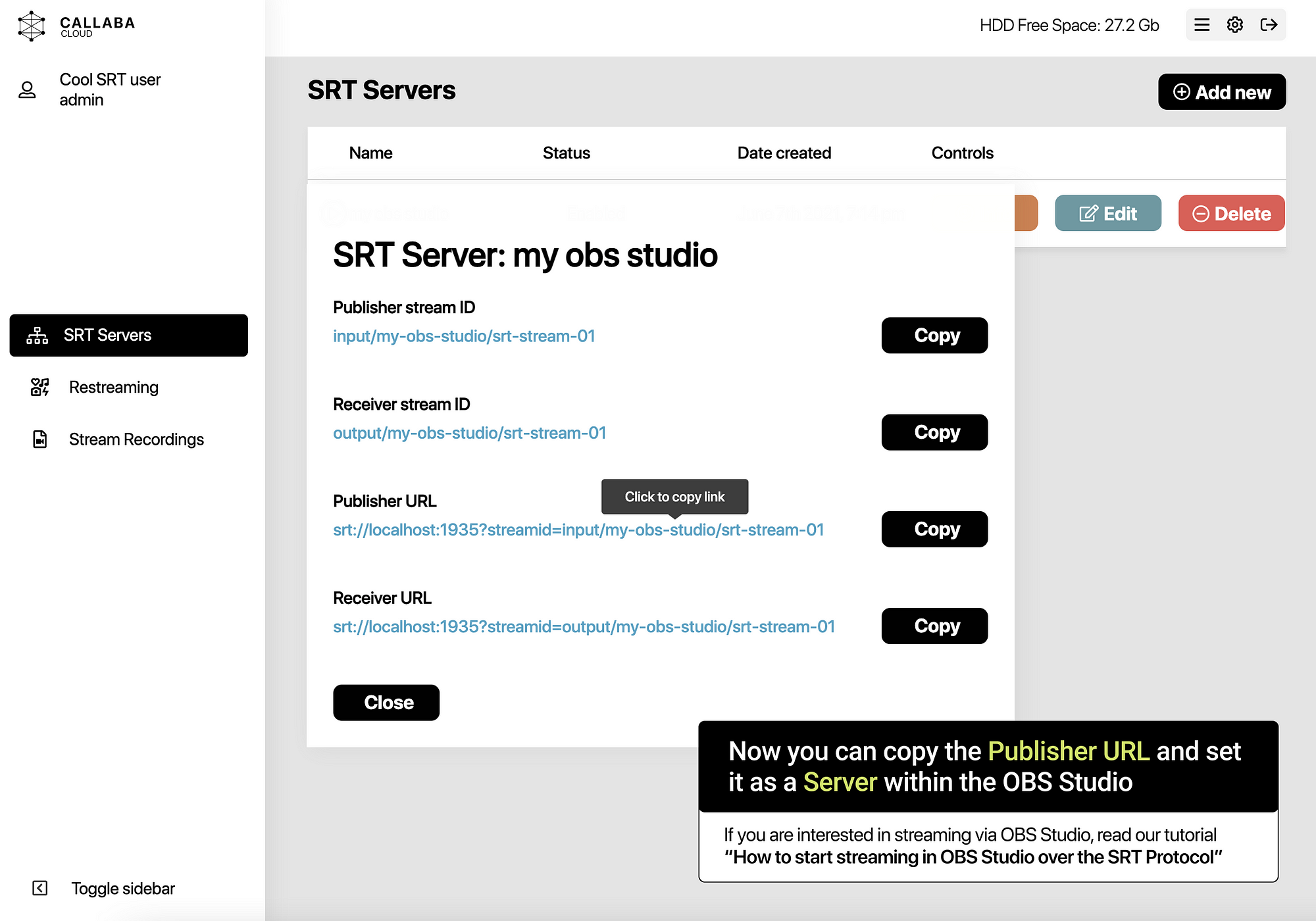
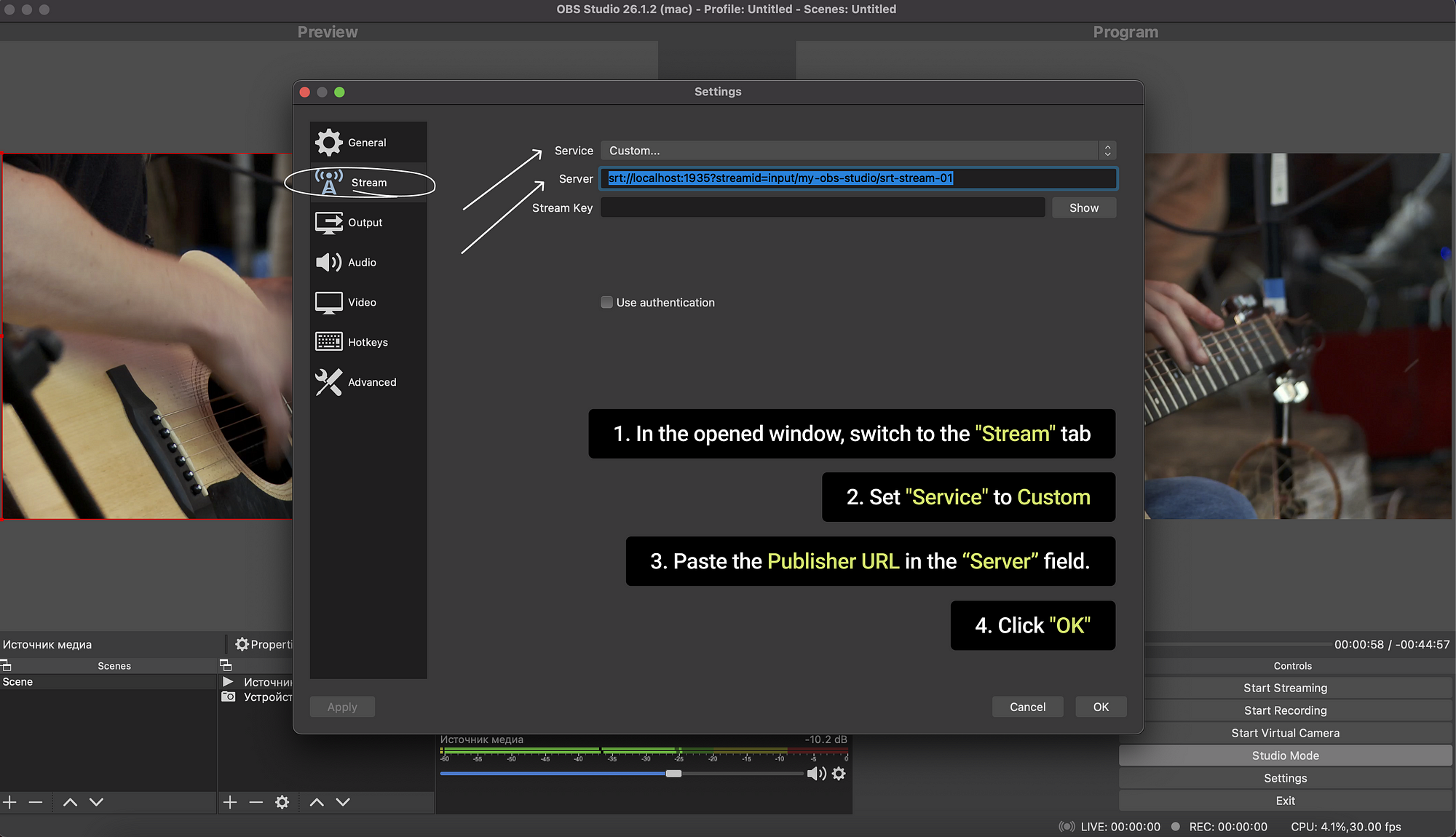
After the upstream feed is stable, add each platform destination separately. This is where many teams move too fast. Validate Twitch first, then YouTube, then Facebook, instead of adding everything at once and trying to debug three variables together.
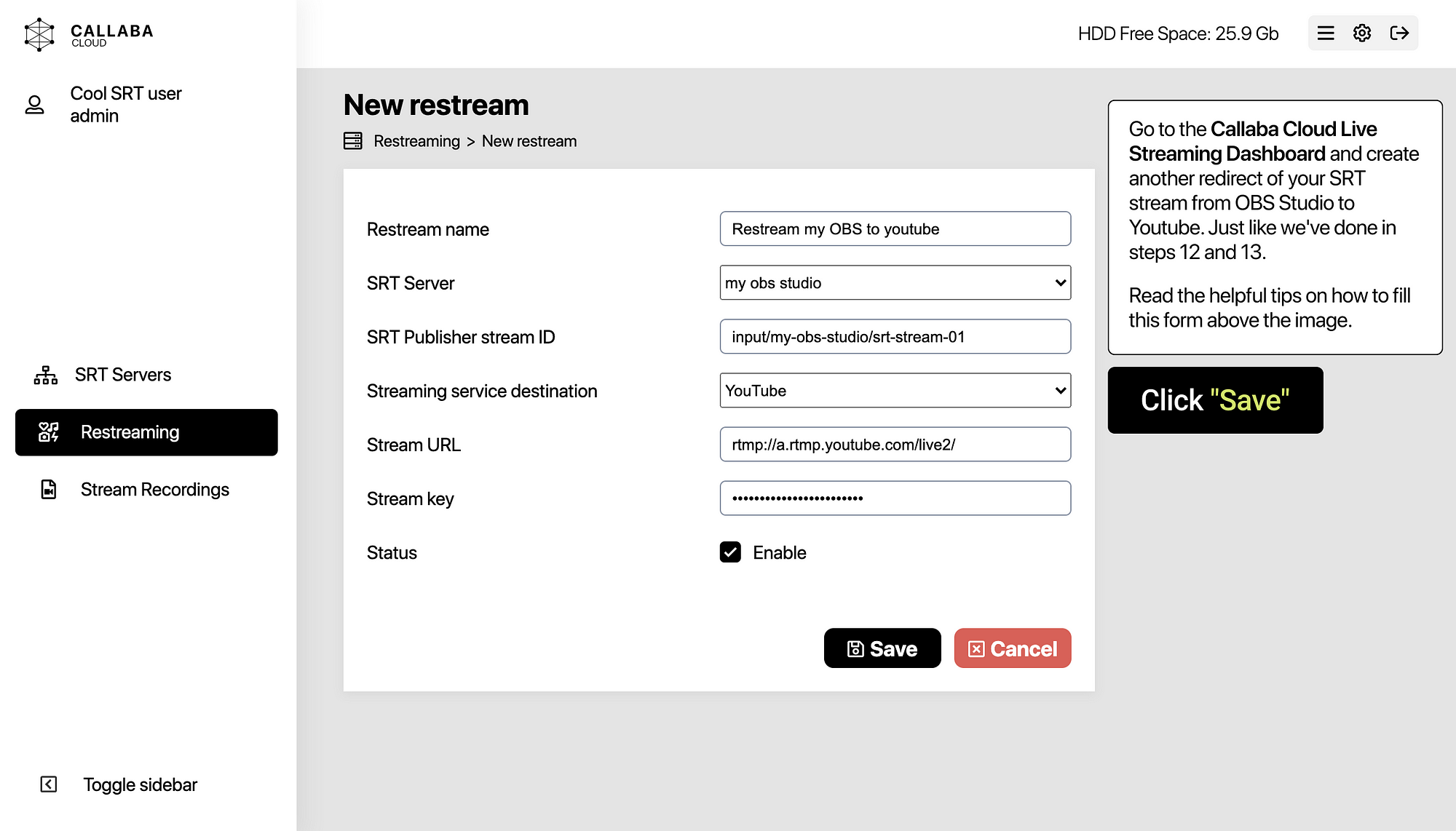
The visual rule is simple: first make one stable upstream from OBS, then confirm each downstream platform in isolation. That is the main operational advantage of this method over stacking several outputs directly in OBS.
Per-platform caveats that matter
Twitch ingest region and key handling
Twitch is sensitive to ingest quality and key accuracy. Use the correct primary stream key for the actual channel, and avoid mixing old test keys with current production keys. If you have a choice of ingest region, use the nearest stable region or a known-good automatic selection. A Twitch issue is often a key or ingest problem, not an OBS scene problem.
YouTube Live Control Room readiness and start timing
YouTube can receive a stream before the broadcast is actually live to viewers. That means you may see incoming data while the event is still waiting in Live Control Room. Scheduled events, persistent stream keys, latency settings, and control-room actions all matter. If YouTube says it is receiving but not publishing, check the event state before changing your encoder settings.
Facebook live destination differences
Facebook is not one single destination type. Streaming to a page, a profile, a group, or an event can involve different permissions, destination flows, and key generation behavior. Make sure the stream key matches the exact Facebook live destination you intend to use for that show.
Platform-side stream key mismatch problems
A wrong key or wrong endpoint does not always fail in an obvious way. You may get no preview, a stuck pending state, or a stream appearing in the wrong destination. When one platform behaves strangely while the others are healthy, compare the exact key and endpoint against the event you created on that platform.
Common multistreaming failures and fast fixes
Upload collapse
If bitrate swings, dropped frames spike, or all outputs go unhealthy together, suspect uplink saturation first. Lower the OBS bitrate, stop background upload traffic, move off Wi-Fi if possible, and avoid pushing separate local outputs when a one-upstream workflow would do the job more safely.
Dropped frames
Check whether the drops are network-related or encoding-related. Network drops point to upload instability, congestion, or oversized bitrate. Encoding lag points to local PC pressure. Lowering resolution, frame rate, browser-source load, or encoder complexity often helps faster than random platform troubleshooting.
One destination dead while others are healthy
This usually means the upstream feed is fine and the problem is isolated to that platform. Check the stream key, event readiness, and platform-specific settings, then restart only that destination. Do not restart OBS unless the source feed itself is broken.
Wrong stream key or endpoint
Re-copy the stream URL and stream key from the platform, confirm there is no pasted whitespace, and verify you did not reuse a previous event key. This is one of the most common causes of “everything looks right but nothing appears.”
YouTube pending forever
If YouTube never transitions cleanly, check that the event is the right one, the key matches, the stream is arriving in the correct control room, and your encoder settings are compatible with the event. If the upstream is healthy elsewhere, restart only the YouTube destination after correcting the event or key.
When to restart only one output vs the whole workflow
Restart only one output when the upstream feed is healthy and only one platform is failing. Restart the whole workflow only when the source stream from OBS is broken, the ingest connection is corrupted, or you changed a source-level setting that affects every destination.
FAQ
Can OBS stream to multiple platforms at once?
Yes. OBS can stream to multiple platforms at once, but the best method is not always direct local output from the same PC. For many workflows, sending one upstream feed and letting another layer fan it out is safer.
Do I need a plugin to multistream from OBS?
No. An OBS multiple streams plugin is one option, but not the only one. You can also send one stream from OBS to a cloud relay or one-ingest fan-out workflow and distribute from there.
What is the safest way to multistream from OBS?
Usually, the safest method is to send one stable stream out of OBS to an upstream server or relay layer, then fan out to platforms there. That reduces local upload load and makes per-destination recovery easier.
Why does OBS drop frames when I stream to several platforms?
Because direct multistreaming increases outbound bandwidth demand and local output pressure. If OBS sends three separate streams, your upload and local system have to sustain three separate delivery paths at once.
Is cloud multistreaming better than sending multiple outputs from one PC?
In many real-world cases, yes. Cloud multistreaming is often better because OBS only has to maintain one upstream feed, while the cloud handles duplication, retries, and platform-specific delivery downstream.
Practical next steps
If you want to build this cleanly, start with the transport layer first. Create the upstream endpoint at /srt-server, then configure OBS publishing with /how-to-start-srt-streaming-in-obs-studio. If you need to bring an SRT return feed back into OBS for monitoring or confidence preview, use /how-to-receive-srt-stream-in-obs-studio. If your workflow still relies on RTMP between parts of the chain, review /sending-and-receiving-rtmp-streams-via-obs-studio. And if you want a managed fan-out workflow after the technical basics are clear, see /products/multi-streaming.
Final practical rule
Whenever possible, send one stable stream out of OBS and handle the fan-out in a more controlled layer.